If you purchased the WS Business plan in either the monthly or annual version, you can manage your team’s licenses from your user profile at:
https://what-sender.com/es/subs/login
You only need to log in with the username and password you received in the “Registration Confirmation” email.
Once inside, you will access a panel similar to the one shown in the following image.
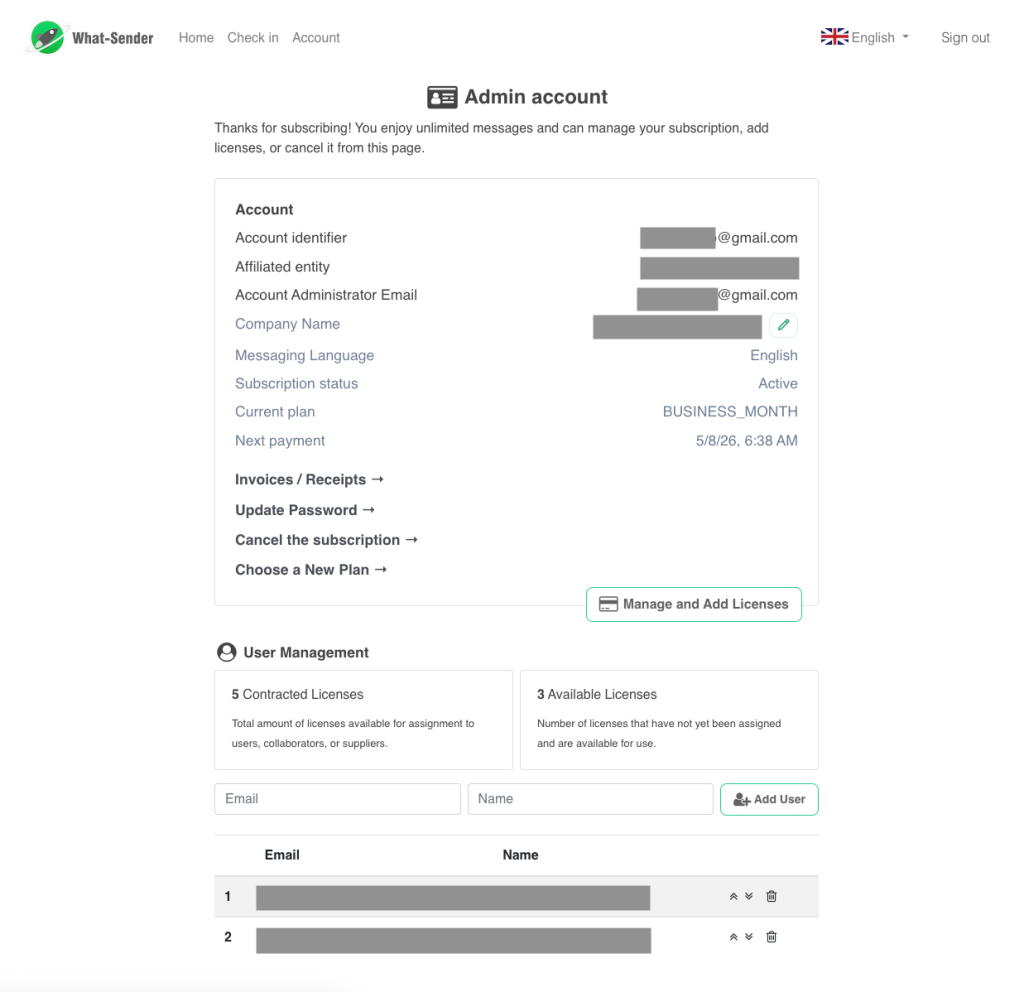
In this panel, you will see:
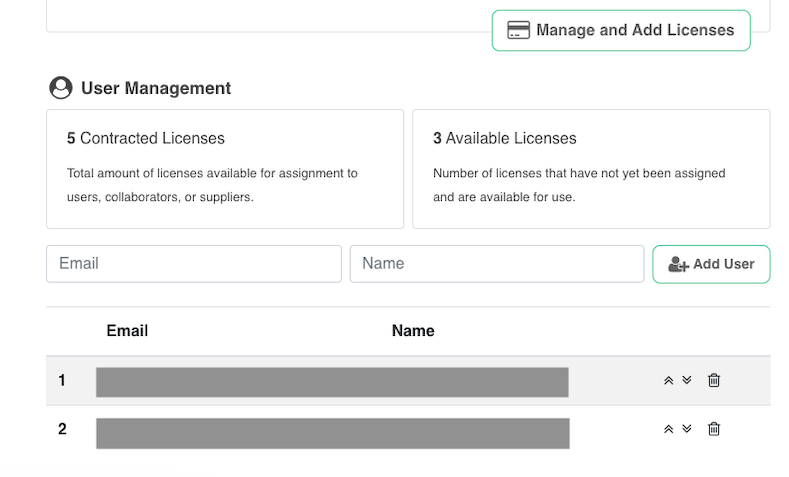
- On the left side: the number of licenses included in your plan.
- On the right side: the licenses that are still available and have not yet been assigned to any user.
How to add users to your account
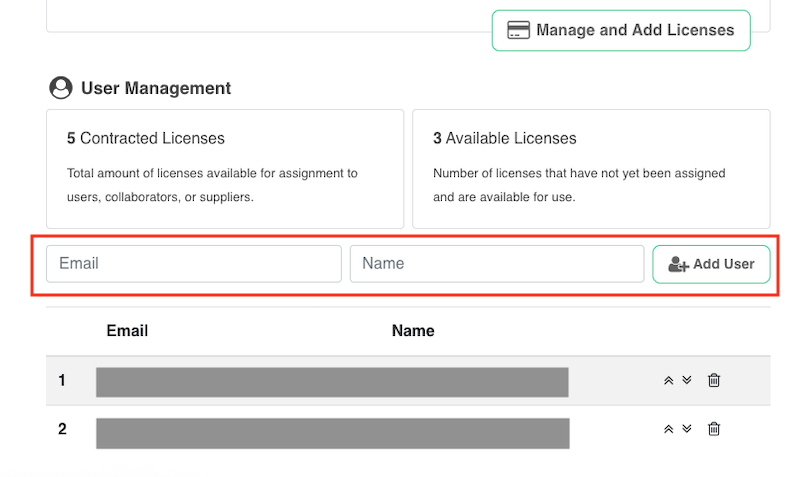
To add a new user, you only need to enter:
- their name
- their email address
Then, click on “Add User.” If the user is already registered in WhatSender, their service will be activated automatically, and they must sign in using the same credentials they used when registering. If it is a new user, the system will automatically send them an email with their login details.
How to identify if you have exceeded your available licenses
At the bottom of the panel, you will see the list of users added to your account.
If at any time you add more users than your plan allows, the extra users will appear highlighted in red.
In addition, the box that previously showed available licenses will now show how many users do not have an active license.

What to do if you have more users than licenses
You have 3 ways to solve this:
1. Prioritize which users will keep the license
You can use the up and down arrows to sort users by priority.
Users who remain within the number of contracted licenses will keep active access. Users highlighted in red will remain without an active license.
2. Remove users you do not want to include
If there are users you no longer need in your plan, you can remove them directly from the list.
3. Increase the number of contracted licenses
If you need to give access to more people, you can update your plan and add more licenses.
How to update the number of licenses in your plan
With WhatSender, you can increase or decrease the number of licenses in your Business plan.
To do so, click on the “Manage and add licenses” option.
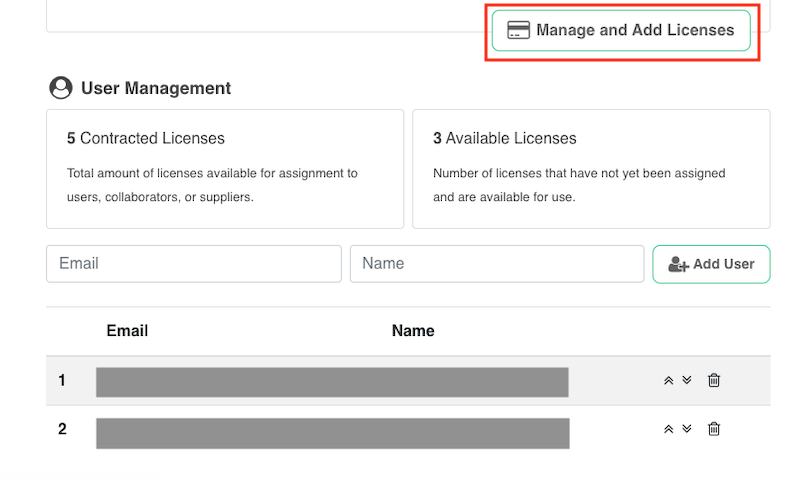
You will then be redirected to the Stripe platform, where you can modify the number of contracted licenses.
Please keep the following in mind:
- the minimum allowed is 5 licenses
- it is not possible to reduce the plan below that number
On the first Stripe screen, you will see the details of your current plan. From there, you can also update your payment method.
Once you confirm the information, click on “Update plan”.

Next, you will access the final screen, where you can adjust the number of licenses according to your needs.
If you increase the number of licenses, an additional proportional charge will be applied. At your next renewal, the new total cost of your updated package will be reflected.

Important information about subscription status
On the page:
https://what-sender.com/es/subs/account
team users will see their subscription as deactivated. This is normal.
This happens because the payment and subscription management are handled through the administrator account. For that reason, only the administrator account will see the subscription as active in the website panel.
However, this does not mean the service is not working. Users assigned to the Business account will have the service active within the extension, as long as they sign in with the correct credentials.
What should each user do?
Each user must:
- Look for the credentials they received at the time of registration, whether they signed up themselves or were added by an administrator.
- Then, sign in to the extension using those same credentials. Once inside, the service will appear as active, and they will be able to use it normally.
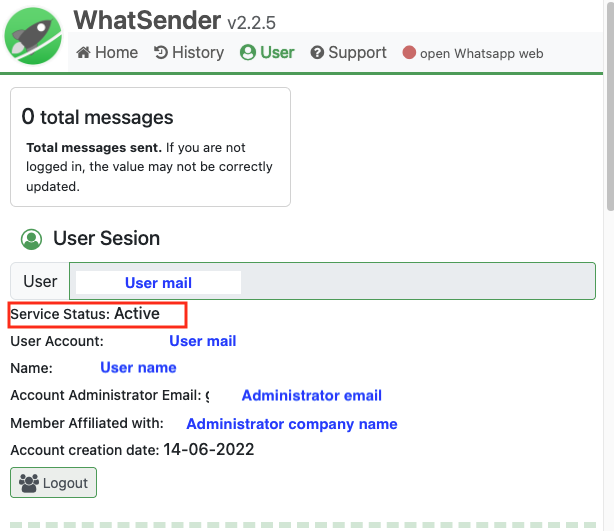
If the service appears as deactivated in the extension, we recommend first signing in at https://what-sender.com/en/subs/login and then signing back into the extension using the same credentials. If the problem persists, you can contact us at support@what-sender.com.