Important: This tutorial applies only to users with a free account or a paid Personal account, meaning individual accounts that do not include team management. If you purchased a Business account, you must follow this other tutorial, since the management panel is different: https://support.what-sender.com/en/how-to-use-the-business-account-panel/
With WhatSender, you can send 40 messages for free per day just by signing up. You do not need a paid subscription to use this free option.
If you need to send more messages, you can subscribe to one of our plans, available in monthly or annual mode.
It is important to keep in mind that paid plans work as a recurring subscription. This means the charge will be processed automatically every month or every year, depending on the plan you selected, using your registered payment method.
You can manage your account from your user panel by going to:
https://what-sender.com/en/subs/account
You must log in with the email address and password you received when you registered.
Before you start: what you will see depending on your account type
If you only have a free registration
If you have not yet purchased a paid plan, you will still have access to 40 free messages per day. In that case, inside your panel you will mainly see the option to purchase a plan.
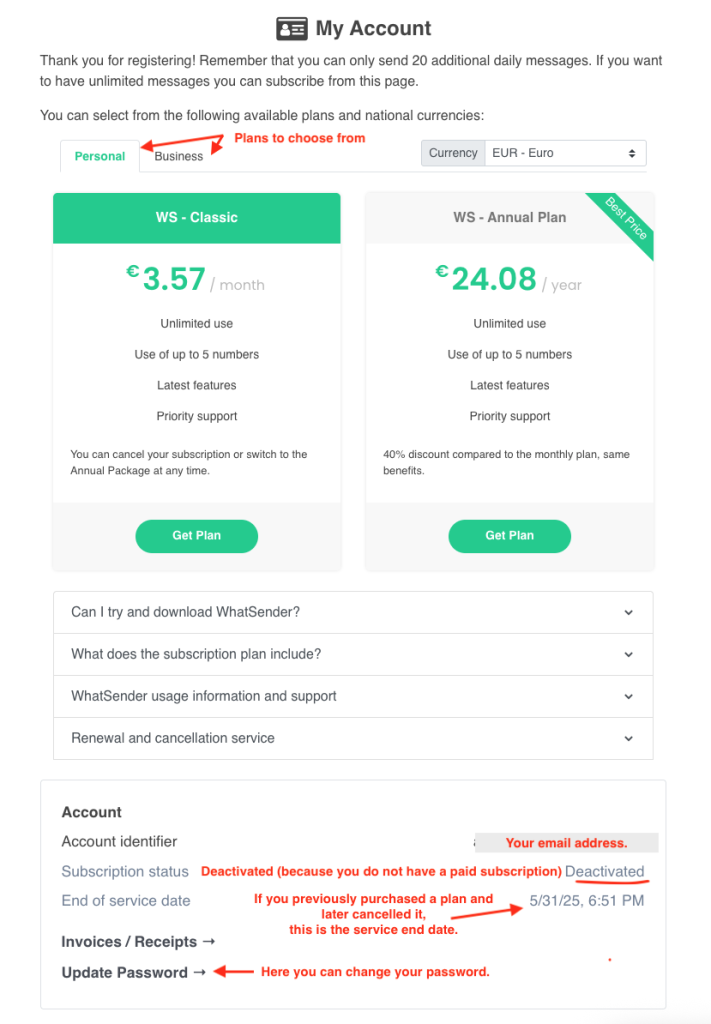
If you already have an active subscription
If you have a Personal account with an active subscription, whether monthly or annual, from this panel you will be able to review your account information, check your invoices, change your password, cancel your subscription, or purchase another plan.
What each section of the panel means
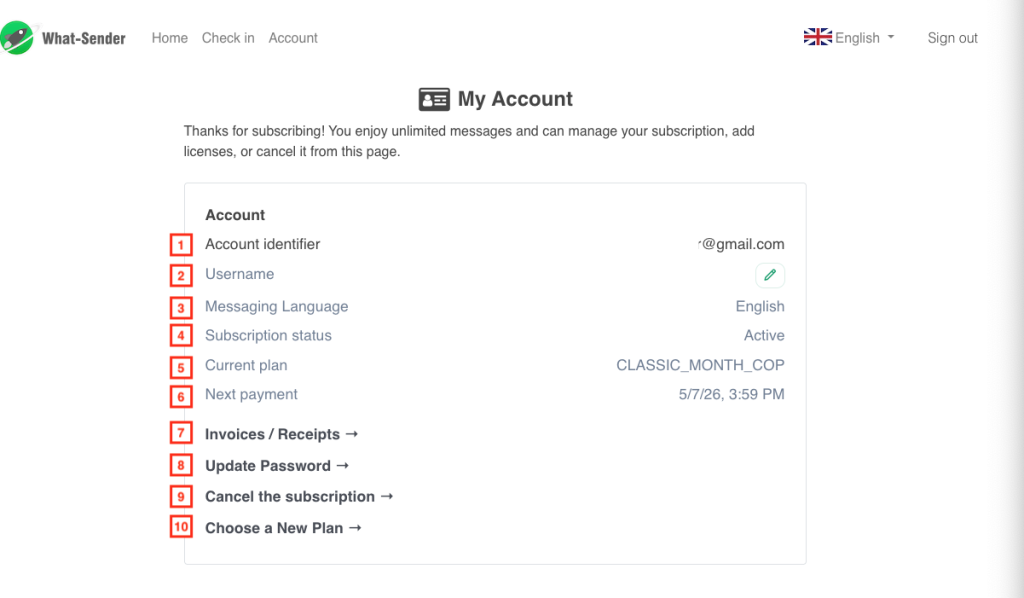
1. Account identifier
It is the email address you used to register with WhatSender.
2. Username
It is the name you added during registration, whether your personal name or your company name.
You can change it by clicking the green pencil icon.
3. Messaging language
It is the language assigned to your account at the time of registration.
If you want to change it, you must do so directly from the extension.
4. Subscription status
Here you will see the current status of your subscription.
It may appear as:
- Active: you have an active paid plan.
- Cancelled: you already cancelled your subscription and no further automatic charges will be made. This does not always mean that you have lost access immediately, but rather that it will not renew in the next billing cycle.
- Expired: there was a problem with the payment or renewal.
If your subscription appears as expired, we recommend cancelling it first and then subscribing again with an updated payment method.
5. Current plan
Here you will see the plan you currently have.
For example:
- If your plan is annual, it may appear as
annual_package - If your plan is monthly, it may appear as
classic_month_currency
If you do not have an active subscription, this section may appear empty.
6. Next payment
If your subscription is active, here you will see the date of the next charge.
7. Invoices / Receipts
In this section, you can view and download the payment receipts for your subscription.
Important: if you cancel your subscription, your invoices may no longer be available in the panel. For that reason, we recommend downloading and saving them in advance.
8. Change your password
From here, you can change your password to one that is easier for you to remember.
9. Cancel subscription
As the name indicates, this is the section where you can cancel your subscription if for any reason you no longer need our service. In the case of monthly accounts, we recommend cancelling at least 2 days before the renewal date, since refunds are not provided if the charge is processed because the subscription was not cancelled in time. Once cancelled, your account will remain active until the date when the next renewal would have taken place, so you will still be able to use the service until the paid period ends. Please note that if you cancel on the same day as the renewal, it is possible that the payment has already been processed, and in that case it will not be possible to reverse it.
10. Purchase a new plan
From here, you can purchase another available plan.
Important information about changing plans
If you already have an active subscription and want to change plans, you must first cancel your current plan and then purchase the new one.
In other words, the change is not made automatically from one plan to another without first cancelling the one you already have.
Important note about account types
This panel applies to users with a Personal account.
If you need to change from a Personal plan to a Business plan, or from Business to Personal, that change cannot be made directly from the panel.
In that case, you must contact the support team at: